
How to Connect Your Gradient All-Weather 120V to Wi-Fi
This blog details how to connect your Gradient All-Weather 120V to WiFi.
Getting your Gradient All-Weather 120V heat pump connected to Wi-Fi is important, quick and easy with the Gradient app. In this guide, we’ll walk you through setting up your Gradient account, pairing your unit, and getting online so you can start controlling your comfort from your phone.
Step 1: Open the Gradient App
Begin by opening the Gradient app on your phone. If you haven’t downloaded it yet, visit theApp StoreorGoogle Playto install it.
Step 2: Create Your Gradient Account
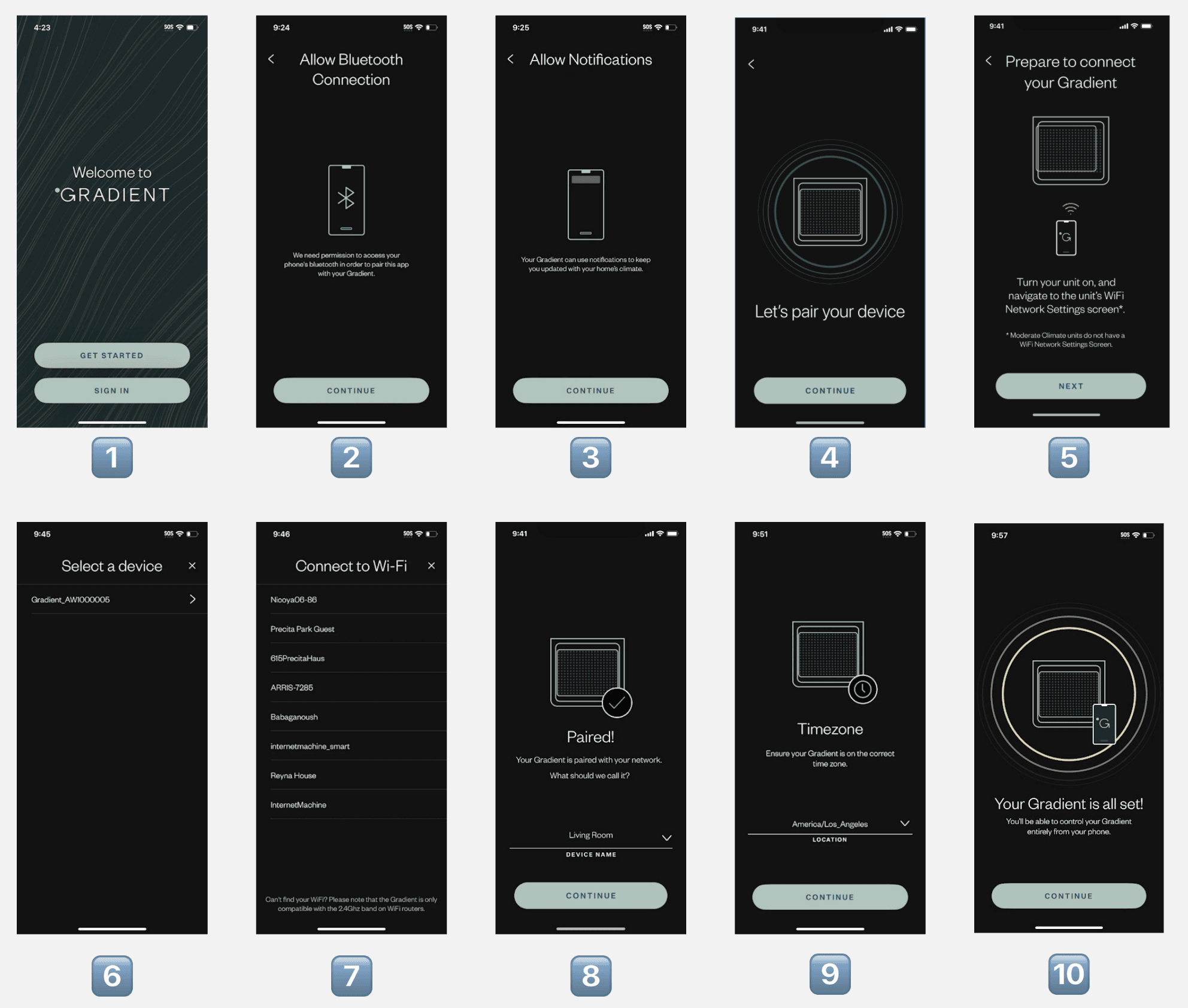
On the welcome screen, tap“Get Started”. Enter your information to create a new Gradient account.
Already have an account? Tap“Sign In”instead.
Step 3: Enable Bluetooth and Notifications
To pair your device, the app will request Bluetooth and notification access. Tap“Continue”when prompted to enable these settings.
Step 4: Begin Device Pairing
On the“Let’s Pair Your Device”screen, tap“Continue”to start the pairing process.
Step 5: Prepare Your Gradient Unit
Make sure your Gradient All-Weather 120V is plugged in and turned on. On the unit’s UI, press thebottom circle button, navigate toSettings, then selectWi-Fi. Leave the unit on this screen and tap“Next”in the app.
Step 6: Select Your Device
The app will search for available Gradient units. When your unit appears, tap it to select.
If multiple units are listed, identify yours by matching the serial number. You can find it on the unit underSettings > Unit Info.
Step 7: Choose a Wi-Fi Network
Select your Wi-Fi network from the list.Important:Gradient units support2.4GHz networks only—they do not connect to 5GHz networks.
Step 8: Name Your Unit
Give your Gradient a custom name (e.g., “Living Room” or “Office”) to help keep track of it within the app.
Step 9: Set the Time Zone
Confirm the correct time zone for your location. This helps your unit stay on schedule for heating and cooling.
Step 10: All Set!
You’re done! Your Gradient unit is now connected to Wi-Fi and fully integrated with the app. You can control it remotely, adjust settings, and receive notifications for optimal performance.
Back to Blogs